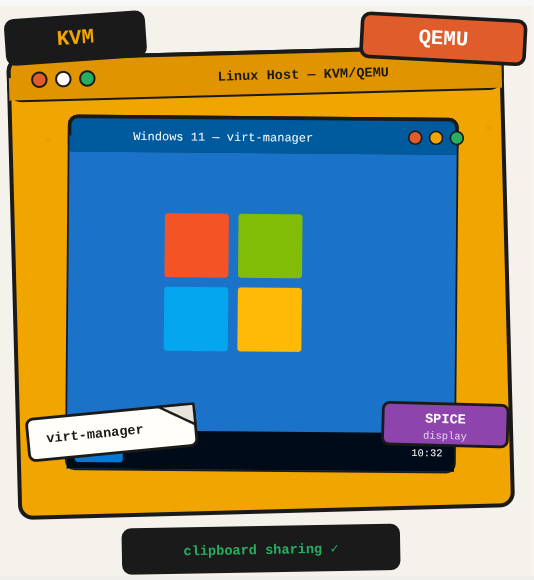
You need Windows for a specific tool but don’t want to dual-boot or buy a second machine. KVM/QEMU on Linux gives you a full Windows VM with near-native performance, clipboard sharing, and shared storage between host and guest.
TL;DR: Install KVM/QEMU on Linux, set up virt-manager, create a Windows VM, configure video and display with SPICE, and enable clipboard sharing.
Stack: Linux, KVM, QEMU, virt-manager, SPICE, Windows
Level: Intermediate
Reading time: ~10 min
1. Install necessary packages
sudo apt-get update
sudo apt-get install qemu-kvm libvirt-daemon-system libvirt-clients bridge-utils virt-manager
2. Add user to libvirt group
sudo adduser $(whoami) libvirtLog out and back in for the change to take effect.
3. Create the VM
virt-managerIn virt-manager, click “Create a new virtual machine”, choose “Local install media”, select your Windows ISO, and assign memory, CPU, and disk. Don’t start it yet.
4. Configure video and display
Before starting the VM, open “Show virtual hardware details”, go to the Video tab and change the model to QXL, then in the Display tab make sure it’s set to SPICE. These two settings together enable clipboard sharing and better display performance.
5. Install Windows, then install SPICE Guest Tools
Start the VM, go through the regular Windows installation, then download and install the SPICE Guest Tools on Windows. After that, clipboard sharing works automatically when connected via virt-manager.
What you’ve built
A Windows VM running on Linux with KVM/QEMU, clipboard sharing, and better display performance via SPICE. No dual-boot headaches, no second machine.
Next steps
- Set up shared folders between Linux and the Windows VM using virtio-fs so you can transfer files without the clipboard.
- Take a snapshot of the clean Windows install before adding any software, so you can roll back if something breaks.
- For better graphics, look into GPU passthrough via VFIO if your hardware supports IOMMU.
Questions or feedback? Find me on LinkedIn or GitHub.