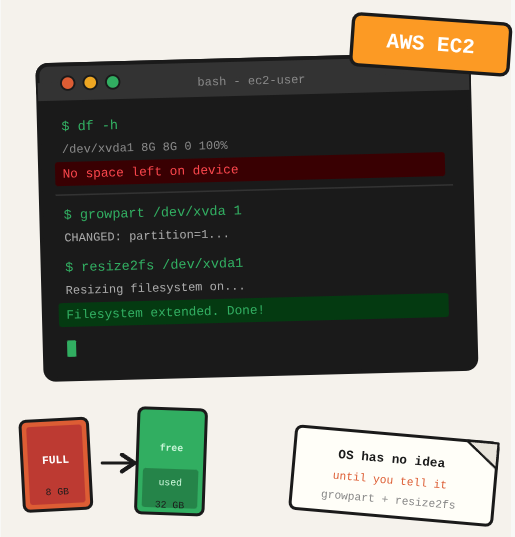
Your EC2 disk is full. The app is throwing errors, the logs stopped rotating, and the CI/CD pipeline is silently failing. You already resized the volume in the AWS Console, but the OS has no idea. This post walks through the exact steps to make the OS actually use that new space.
TL;DR: Resize an EC2 EBS volume and extend the filesystem so the new space is available to the OS.
Stack: AWS EC2, EBS, Linux (bash), parted, resize2fs, growpart
Level: Intermediate
Reading time: ~5 min
I’ve done this more times than I care to admit. Disk fills up in production at 2am, and you are staring at a volume that AWS says is 500GB but the OS insists is still 100GB. Two commands fix it. This post is so you find those two commands before I had to.
Modify the volume
Start in the AWS Console. Go to EC2, find your volume under Elastic Block Store, and click Modify. Set the new size and confirm. AWS applies the change at the block device level, the OS is still blissfully unaware.
Verify the new space on the instance
SSH into the instance and run lsblk to see what the kernel currently thinks about disk layout. You will notice the physical block device is already the new size, the partition just hasn’t been told yet.
lsblkUpdating the disk
Three steps: check current usage with df, inspect partition layout with fdisk, extend the partition with parted, then resize the filesystem. Don’t skip the df step, it tells you exactly which device and partition you need to target.
First, check disk usage to identify which partition to expand (likely nvme0n1p1):
sudo df -hThen check the partition and device layout:
sudo fdisk -lUse parted to resize the main partition. This extends the partition boundary to fill the available block device space:
sudo parted /dev/nvme0n1Inside parted, run these commands:
print        # See the list of partitions
resizepart 1 # Resize partition 1 (adjust if needed)
When prompted for “End”, type the target size (adjust to match your volume):
537GBExit parted:
quitNow resize the ext4 filesystem on the partition. This is the step that actually makes the space visible to the OS, without it, you have a bigger partition that nobody can use:
sudo resize2fs /dev/nvme0n1p1Verify the OS now reports the correct size:
df -hWhat you have done
You resized an EBS volume through the AWS Console, confirmed the new size at the block device level, extended the partition with parted, and resized the ext4 filesystem with resize2fs. The OS now sees and can use the full allocated space. Your logs can breathe again.
Next steps
- Set up disk usage alerts: Use CloudWatch to trigger an alarm when disk usage exceeds 80%. Finding out your disk is full via a 2am alert is a rite of passage, but once is enough.
- Automate with AWS Systems Manager: For fleets of instances, SSM Run Command lets you run these resize steps across multiple machines without SSH-ing into each one.
- Consider EFS for shared storage: If multiple instances need the same storage and you keep hitting this problem, Amazon EFS scales automatically and removes the resize ceremony entirely.
Questions or feedback? Find me on LinkedIn or GitHub.